Shelly Coat
Shelly CoatShelly CoatLaminating
Hello! I'm Shelly Coat, in charge of laminating. I'll show you how to wrap and protect your precious papers!
See more friends →

How to laminate COATING

Check how many pouches you need and pay first. Then turn on the power, wait for it to warm up, and feed in the pouch. Always turn the power off when you're done.
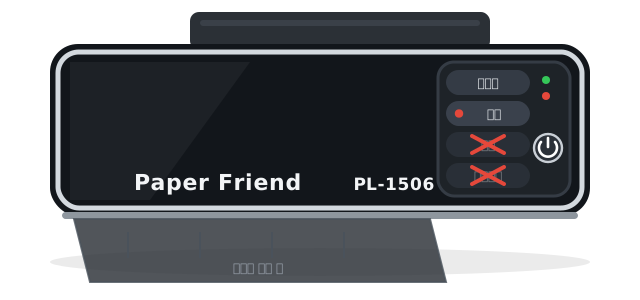
How to use the black laminator (PL-1506) PL-1506

This guide is for the Paper Friend PL-1506 laminator in [문서] (Document) mode. If your store has the black PL-1506, laminate this way first. (Stores with only the white SAFA-BM100: follow the SAFA-BM100 guide at the very bottom.)

▶Watch the black PL-1506 video first No sound needed
🧾 Before you start laminating! Same for white SAFA-BM100 · black PL-1506
  1. First check how many laminating pouches are on display.
  2. If there are enough, choose how many at the Toss kiosk and pay by card, then follow the steps below.
  3. If there are fewer pouches than you need, come back another time, or use only what's there.
⚠️ Refunds for Toss kiosk payments are sent to a bank account. If you pay twice by your own mistake, we send back the amount minus the fee. Please don't pay twice.
Paper Friend PL-1506 역회전 문서 사진 무열코팅 Pouch slot
Black · Paper Friend PL-1506 (top view)
역회전 문서 사진 무열코팅 READY POWER 1 2 3
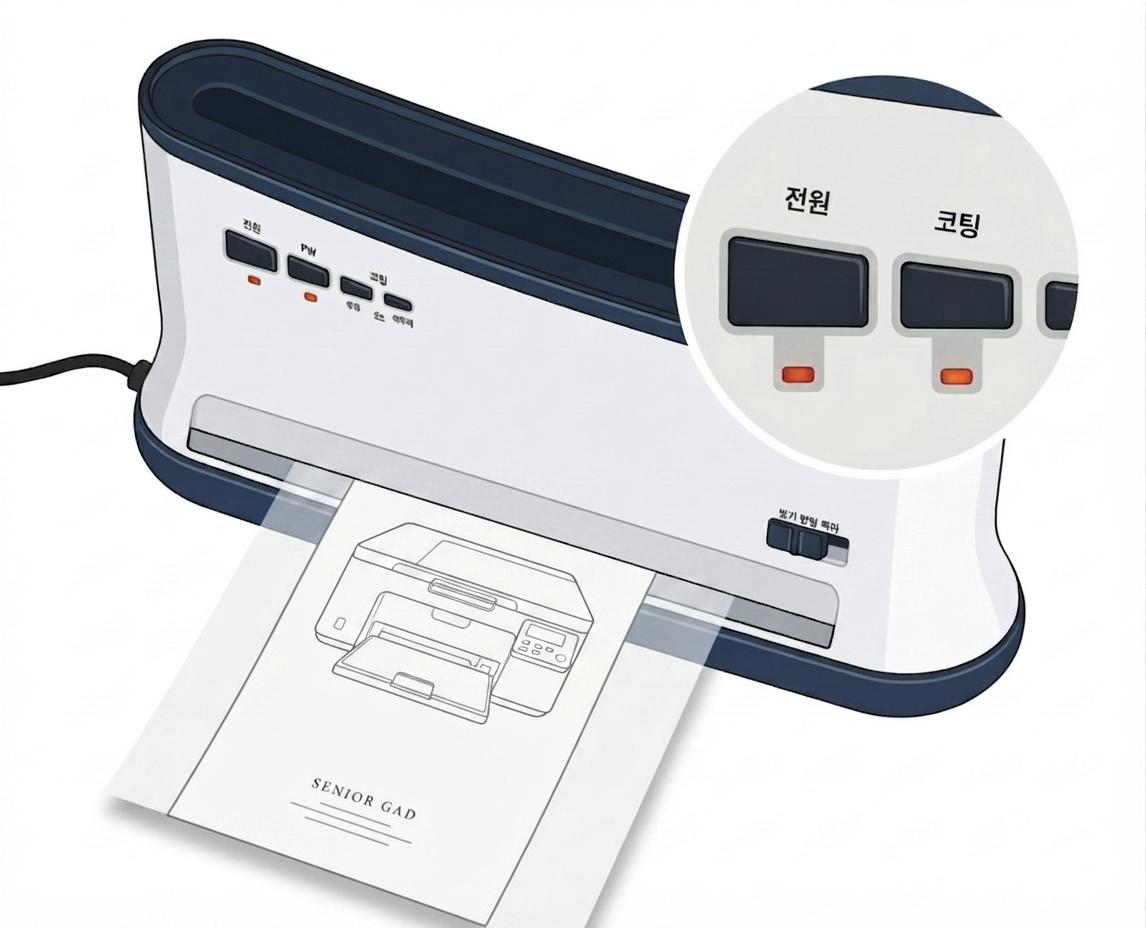
Buttons close up
How to use the black PL-1506 laminator
1
Check the pouches · pay first!

First check how many laminating pouches are on display.
If there are enough, choose how many at the Toss kiosk and pay by card before using it.
If there are fewer pouches than you need, come back another time, or use only what's there.
⚠️ The order is check how many → pay → laminate. Always pay first
⚠️ Refunds for Toss kiosk payments are sent to a bank account. If you pay twice by your own mistake, we send back the amount minus the fee. Please don't pay twice.
2
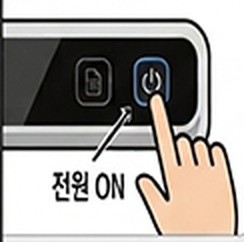
Pressing the power button — power ON
Press the power button

Press the power button to turn it on. (power ON)
💡 Normal (default) state — the laminator is always plugged in, so the POWER red light keeps blinking and the READY green light also blinks. This is normal, not a breakdown.
3
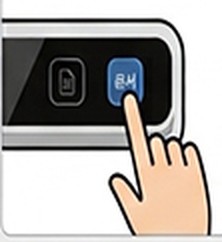
Pressing the 문서 (Document) button
Press the [문서] (Document) button

Press the [문서] (Document) button to set Document mode.
When the [문서] button's red light blinks and the READY green light also blinks, warm-up has started.
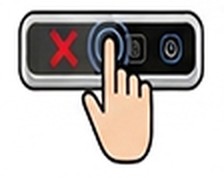
Don't press the [사진] (Photo) · [무열코팅] (Cold) buttons. Use Document mode only.
4
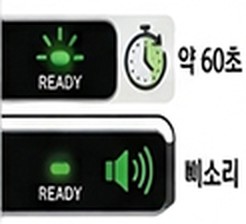
While warming up, the READY green light blinks; after about 60 seconds it beeps and stops blinking
Wait for it to warm up

Warming up takes about 60 seconds.
After 60 seconds, you hear a "beep", and when the READY green light stops blinking and stays on, warm-up is done.
The red light by the [문서] button keeps blinking — that's normal. Don't put a pouch in while the READY green light is blinking.
5
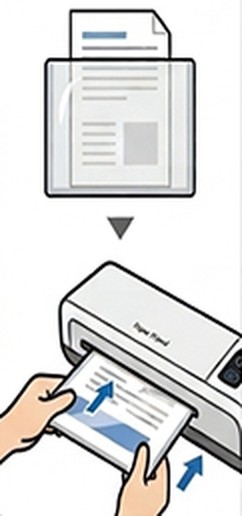
Putting the print in the pouch and holding it to the front of the laminator
Put in your print

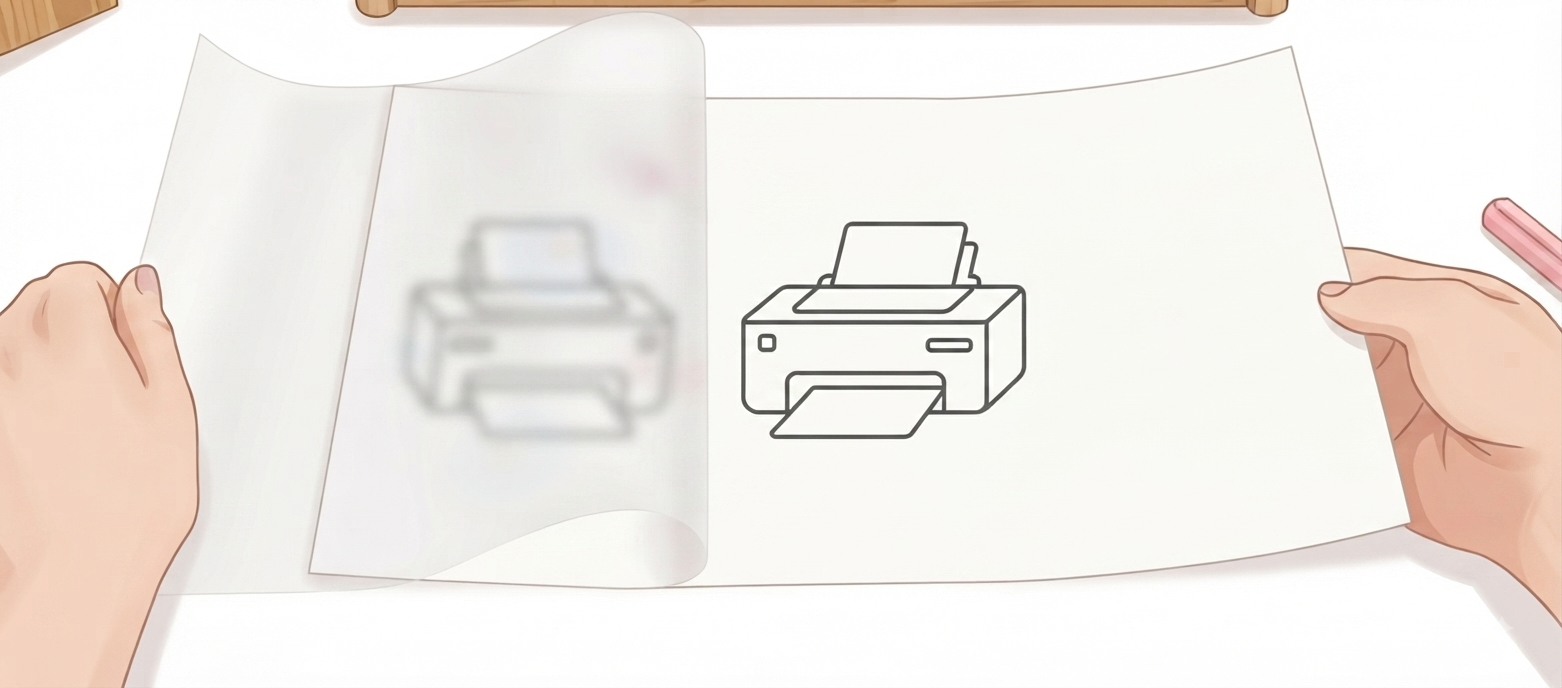
Put your print inside the pouch.

6
Feeding the sealed end of the pouch straight into the slot
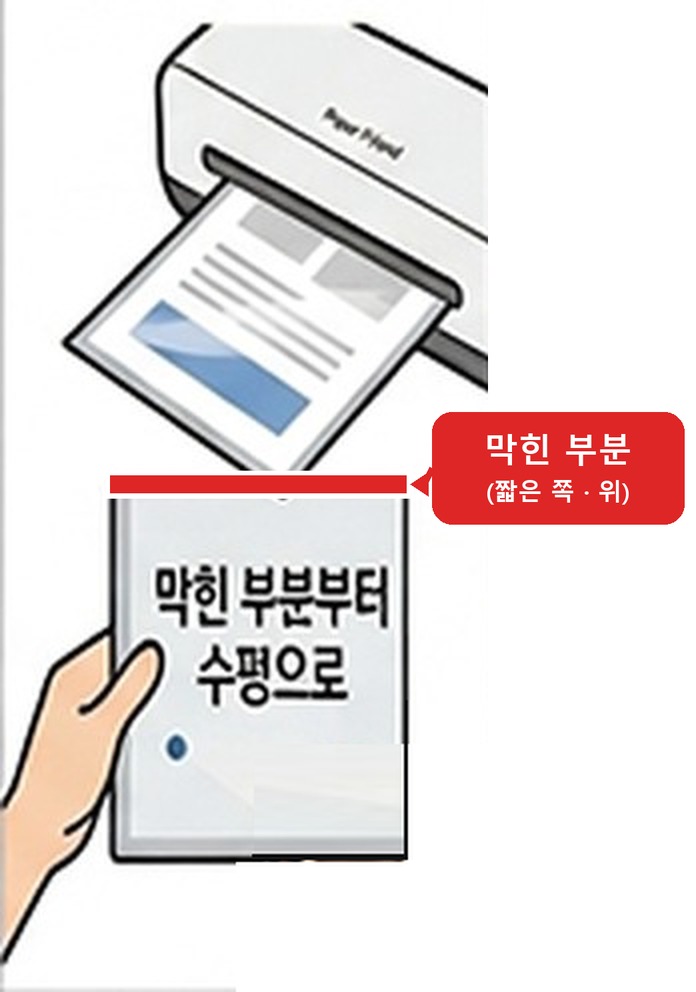
Sealed end first, straight in

Feed the pouch in sealed end first, keeping it level.
The sealed end is the short (top) edge of the pouch. Not the long side.
7
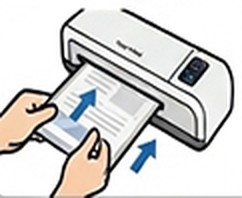
Gently pushing the pouch in until it is pulled in automatically
Push until it's pulled in by itself

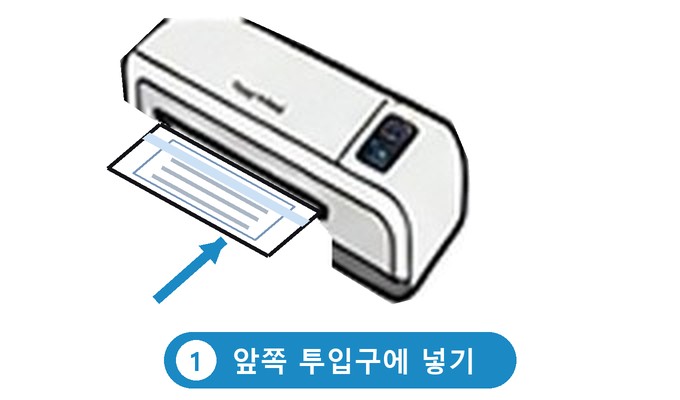
Push it in slowly and flat. The sensor at the slot detects the pouch, and the laminator pulls it in automatically.
8
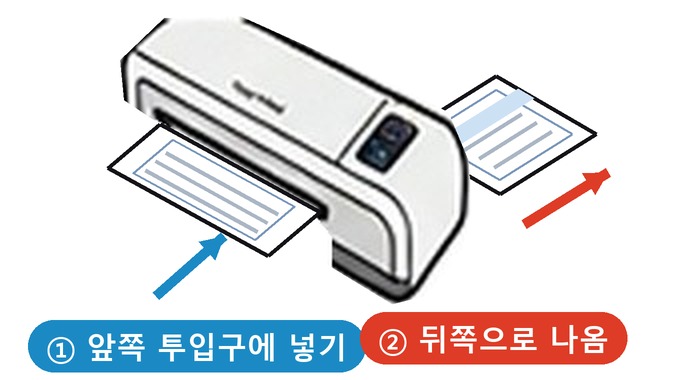
Put the pouch in the front slot and it comes out the back
Check it comes out

The pouch goes in the front slot and comes out the back. Check that it comes out the back.
⚠️ Never put anything in the back where pouches come out. Only use the front slot.
!Laminating safety — things not to do and things to do. Please follow them
🔥🚨 Fire risk — NEVER do this! 🚨🔥
A print alone can cause a fire
🚫 Don't put in a print alone!Never put a print in the laminator without a pouch
An empty pouch alone can cause a fire
🚫 Don't put in an empty pouch!Never put an empty pouch in the laminator without a print inside
⚠️ Doing either of these can start a fire inside the laminator. 🧯
Only put in a pouch with your print inside. There is a risk of fire and damage to the machine.
Do this
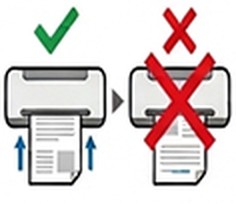
  • Sealed end first is correct; the other way is wrong
    Feed the pouch sealed end first. (Must)
  • Pushing it in until it is pulled in automatically
    Don't leave it resting in the slot. Carefully, without wrinkling it, push it in slowly until it's pulled in automatically.
  • For several sheets, wait until the first pouch comes out before putting in the next one.
    ⚠️ Pouches go in the front slot and come out the back. Don't put anything in the back where they come out.
    Putting the first pouch in the front slot

    Put ① the first pouch in the front slot.
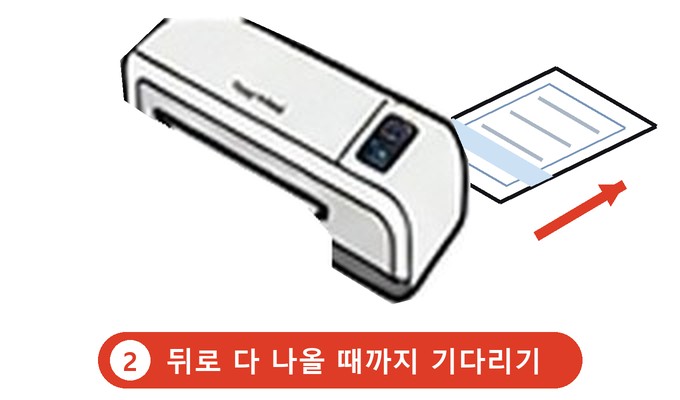
    Waiting until the first pouch comes all the way out the back

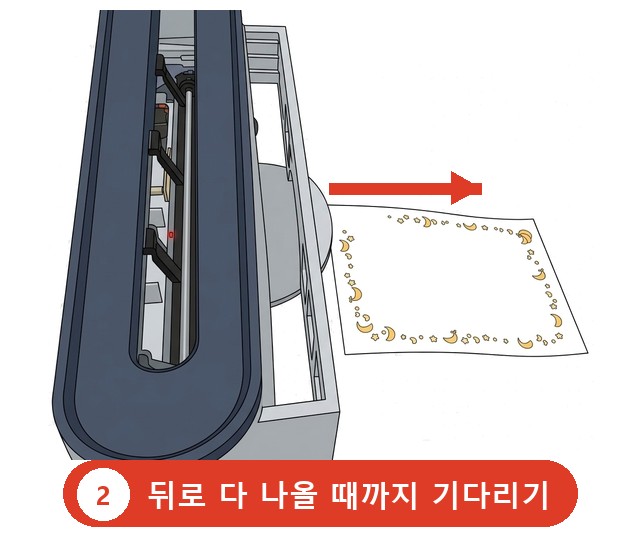
    Wait ② until it comes all the way out the back.
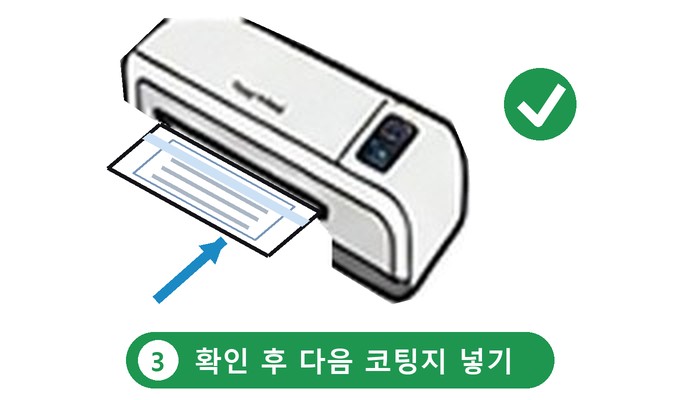
    Checking and taking out the finished pouch, then putting the next pouch in the front slot

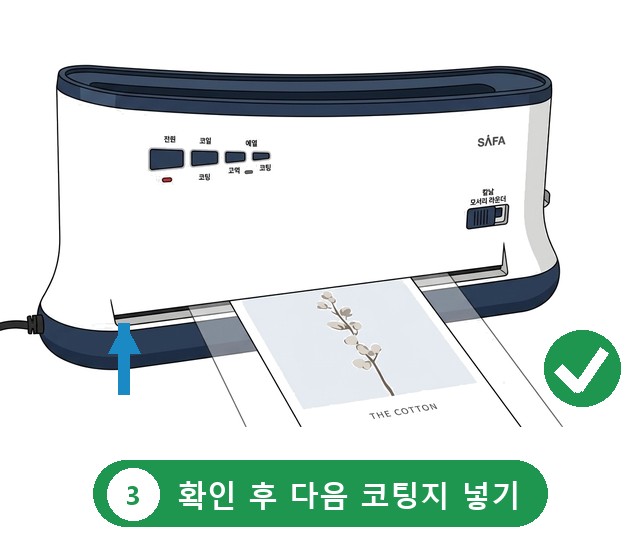
    ③ Check that it's all the way out, take it out, then put the next pouch in the front slot.
  • Pressing the power button to turn it off after use
    When you're done, press the power button to turn it off.
Don't do this
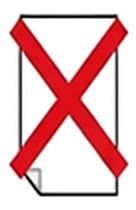
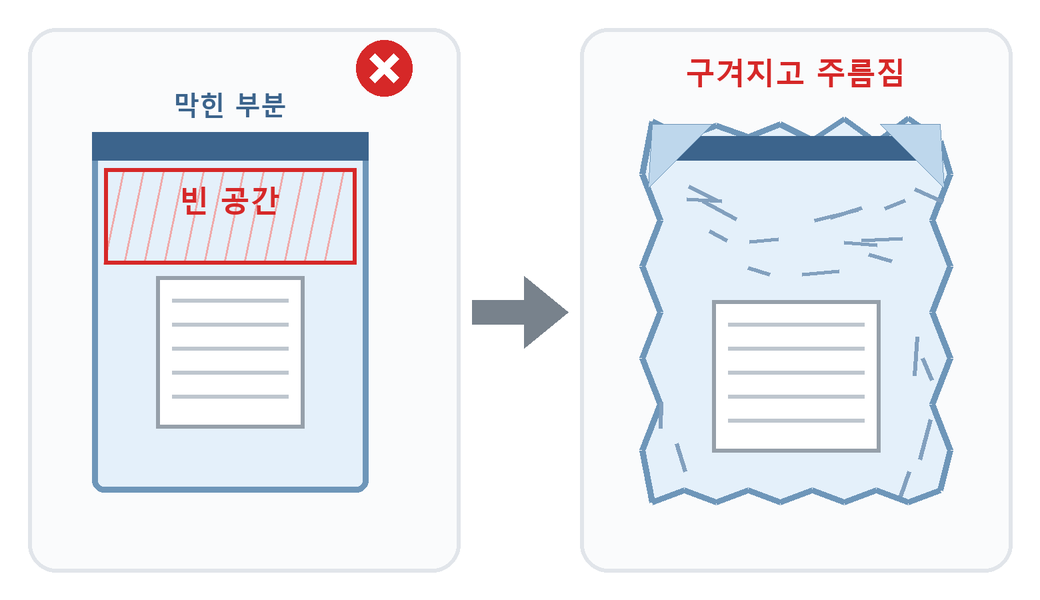
A print smaller than the pouch leaves empty space, and the pouch gets crumpled and wrinkled inside the laminator
▲ If you put it in like the left (✕), it comes out crumpled like the right.
  • Don't put in a print cut smaller than the pouch. If there is a lot of empty space in the pouch (A4 · A3), those parts stick together with no paper inside and come out crumpled and wrinkled.
    Especially if the print doesn't reach the sealed end, the corner of the sealed end can crumple and get stuck inside the laminator, or come out crumpled.
    👉 Use a print that fits the pouch size and reaches the sealed end.
  • Prints you brought can't be used
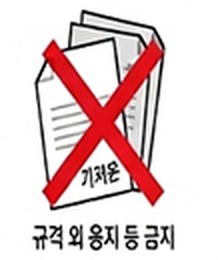
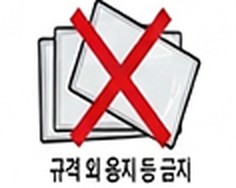
    Prints you brought from outside can't be used. (Only paper from our store)
  • Pouches you brought can't be used
    Laminating pouches you brought can't be used. (Only pouches from our store)
  • Don't press buttons while it's running
    Don't press any buttons while the laminator is running. (Pressing the wrong one causes problems)
※ These warnings apply to all laminators, both the white SAFA-BM100 and the black PL-1506.

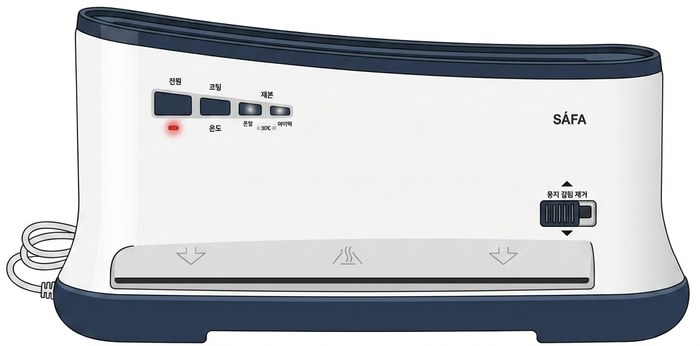
How to use the white laminator (SAFA-BM100) SAFA-BM100

This guide is for the white SAFA-BM100 laminating · binding machine. In stores that have both kinds, please use the PL-1506 above first. Stores with only the white SAFA-BM100: laminate this way.

▶Watch the white SAFA-BM100 video first No sound needed
How to use the white SAFA-BM100 laminator
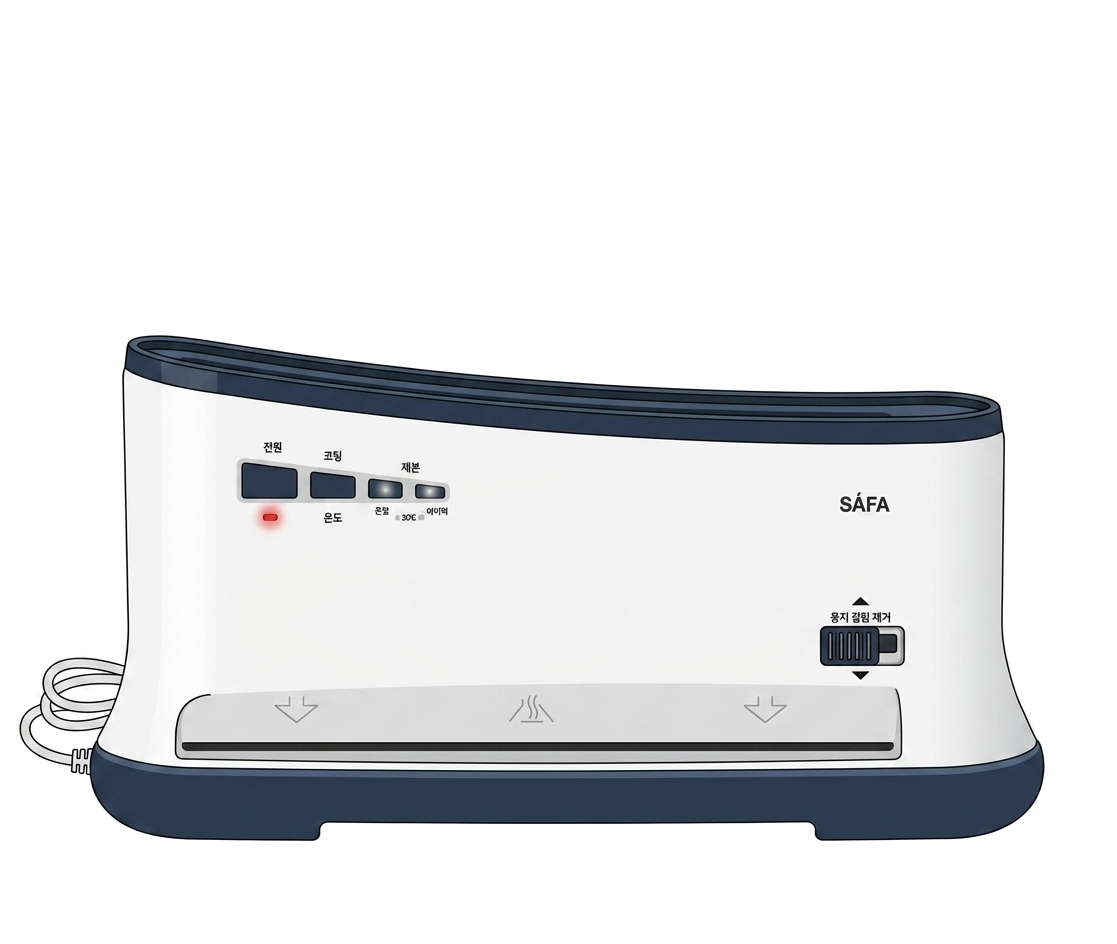
🔀 This machine (SAFA-BM100) is a laminating · binding machine in one
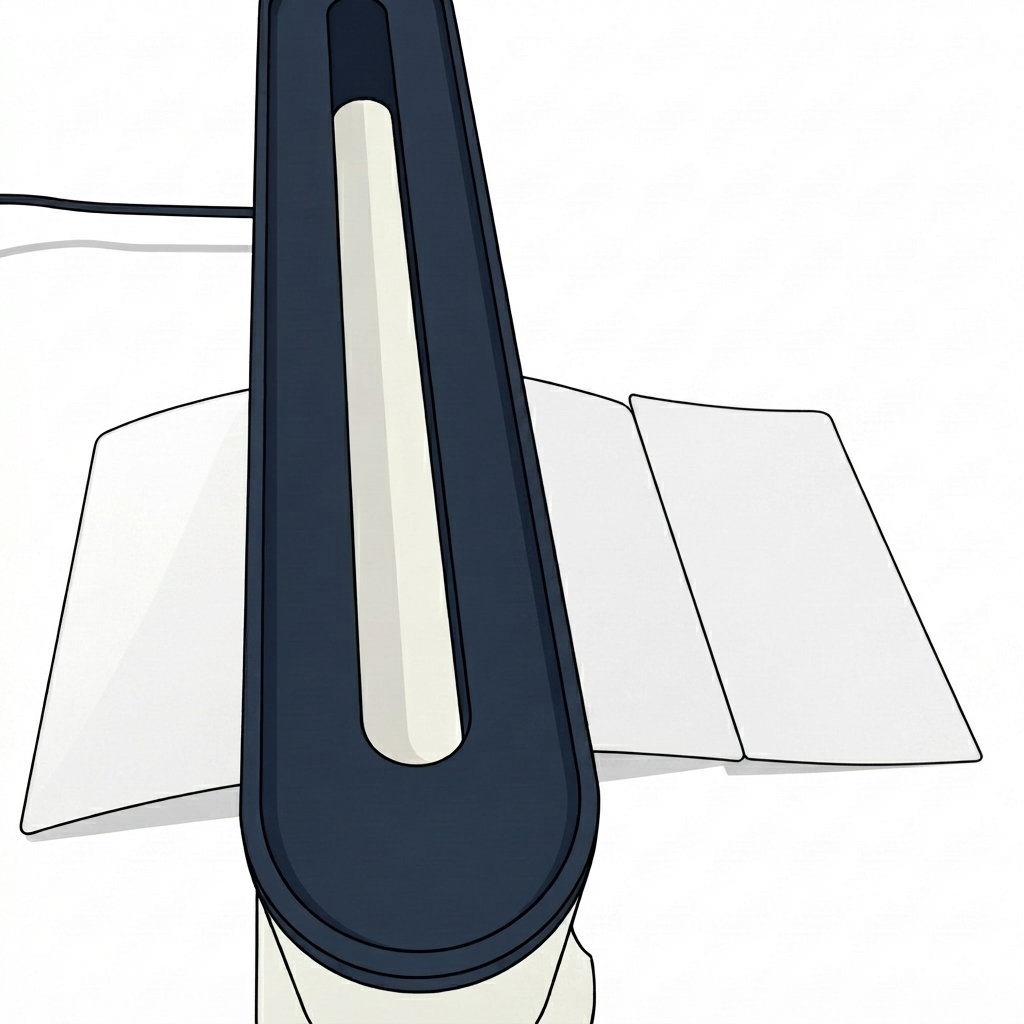
🚫 The long slot on top is only for binding covers. Never put a laminating pouch in the top slot!
Laminating pouches go only in the lower (front) slot. A pouch in the top slot can get stuck and break the machine.
SAFA-BM100 laminating · binding machine: the long top slot is for binding covers (no pouches); the lower front slot is for laminating pouches
🧾 Before you start laminating! Same for white SAFA-BM100 · black PL-1506
  1. First check how many laminating pouches are on display.
  2. If there are enough, choose how many at the Toss kiosk and pay by card, then follow the steps below.
  3. If there are fewer pouches than you need, come back another time, or use only what's there.
⚠️ Refunds for Toss kiosk payments are sent to a bank account. If you pay twice by your own mistake, we send back the amount minus the fee. Please don't pay twice.
1
Check the pouches · pay first!

First check how many laminating pouches are on display.
If there are enough, choose how many at the Toss kiosk next to the machine and pay by card before using it.
If there are fewer pouches than you need, come back another time, or use only what's there.

⚠️ The order is check how many → pay → laminate. Always pay first
⚠️ Refunds for Toss kiosk payments are sent to a bank account. If you pay twice by your own mistake, we send back the amount minus the fee. Please don't pay twice.
2
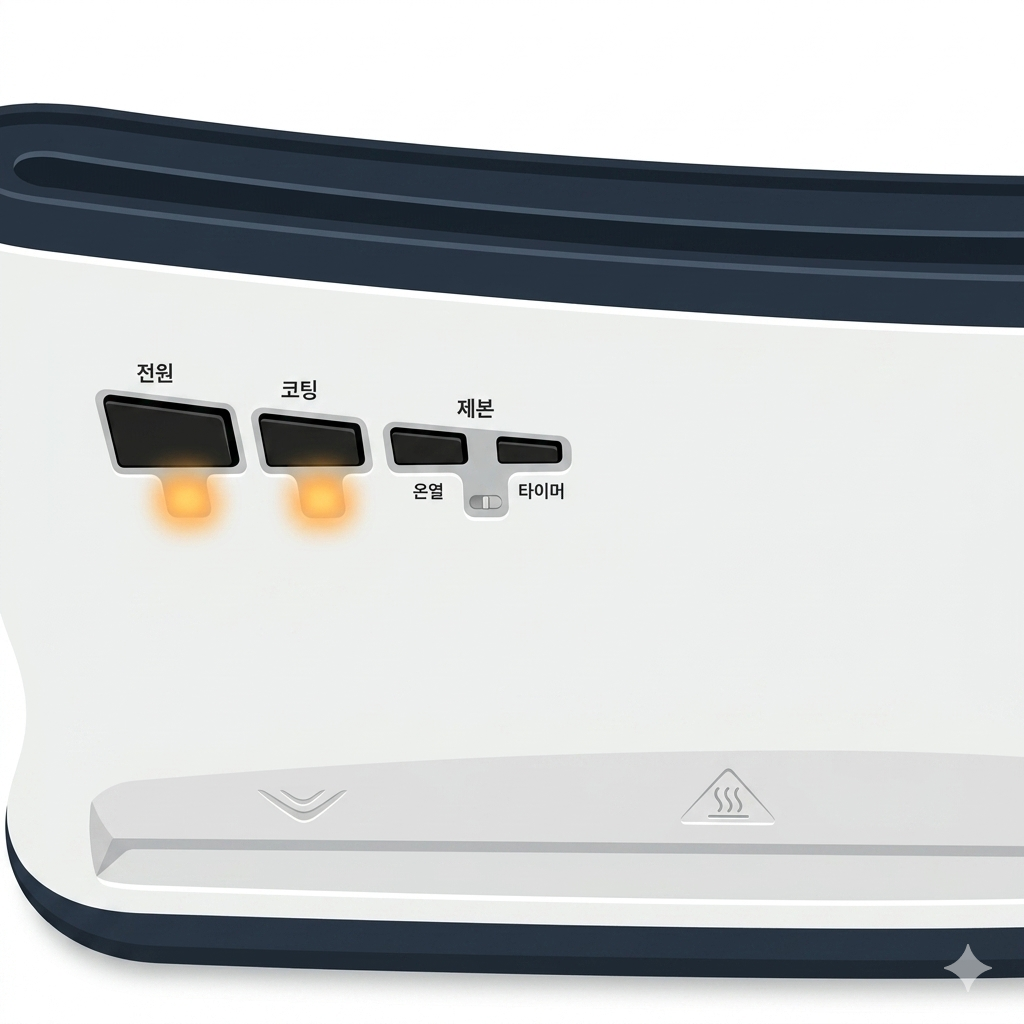
Pressing the power buttonPressing the laminating button twice
Power on · warm up

Press the power button, then press the laminating button twice.
The light blinks, and after 3–5 minutes it beeps and the light stays on. Warm-up is done.

⚠️ If you pressed the laminating button 3 or more times, press the power button to turn it off, then start again: press power, then the laminating button twice.
3
Putting the print inside the pouch
Put your print in the pouch

Put your print neatly inside the laminating pouch.

4
Feeding the sealed end of the pouch level into the slot
Feed it into the laminator

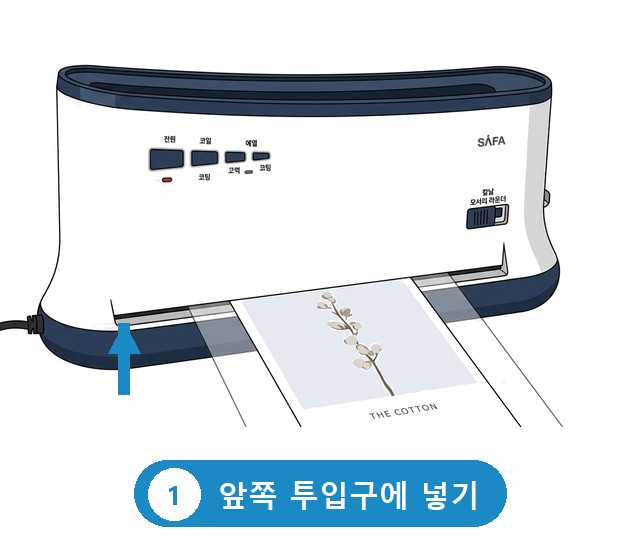
Feed the pouch into the slot sealed end first.
Keep it level and straight, without wrinkling.

5
Watching that the pouch doesn't get caught as it comes out the back
Watch it come out

Watch that the pouch comes out the back smoothly without getting caught.

6
Power OFF

When you're done, always turn the power off.

If you don't turn it off, it causes problems for the next customer.
!Laminating safety — things not to do and things to do. Please follow them
🔥🚨 Fire risk — NEVER do this! 🚨🔥
🚫 Don't put in a print alone!Never put a print in the laminator without a pouch
🚫 Don't put in an empty pouch!Never put an empty pouch in the laminator without a print inside
⚠️ Doing either of these can start a fire inside the laminator. 🧯
Only put in a pouch with your print inside. There is a risk of fire and damage to the machine.
Do this
  • Feed the pouch sealed end first. (Must)
  • Don't leave it resting in the slot. Carefully, without wrinkling it, push it in slowly until it's pulled in automatically.
  • For several sheets, wait until the first pouch comes out before putting in the next one.⚠️ Pouches go in the front slot and come out the back. Don't put anything in the back where they come out.
    Putting the first pouch in the front slot of the SAFA-BM100

    Put ① the first pouch in the front slot.

    Waiting until the first pouch comes all the way out the back

    Wait ② until it comes all the way out the back.

    Checking and taking out the finished pouch, then putting the next pouch in the front slot

    ③ Check that it's all the way out, take it out, then put the next pouch in the front slot.
  • When you're done, press the power button to turn it off.
Don't do this
A print smaller than the pouch leaves empty space, and the pouch gets crumpled and wrinkled inside the laminator
▲ If you put it in like the left (✕), it comes out crumpled like the right.
  • 🚫 Don't put a pouch in the top binding-cover slot. (Pouches go only in the lower front slot)
  • Don't put in a print cut smaller than the pouch. If there is a lot of empty space in the pouch (A4 · A3), those parts stick together with no paper inside and come out crumpled and wrinkled.
    Especially if the print doesn't reach the sealed end, the corner of the sealed end can crumple and get stuck inside the laminator, or come out crumpled.
    👉 Use a print that fits the pouch size and reaches the sealed end.
  • Prints you brought from outside can't be used. (Only paper from our store)
  • Laminating pouches you brought can't be used. (Only pouches from our store)
  • Don't press any buttons while the laminator is running. (Pressing the wrong one causes problems)
※ These warnings apply to all laminators, both the white SAFA-BM100 and the black PL-1506.

This page was translated from Korean. If anything looks wrong, please tell us on Naver TalkTalk. Screens on the machines are in Korean — the Korean button names are shown in [brackets].