Hoo Scan
Hoo ScanHoo ScanScanning
Hello! I'm Hoo Scan, in charge of scanning. Let's turn paper into files carefully together!
See more friends →

How to scan SCAN

This service turns paper into a file. You keep your paper, and you get the file from the scan folder on the store PC. For bankbooks · passports · books, see the glass guide in How to Copy.

▶Watch the scanning video first No sound needed
🌐 You can change the printer machine screen to English
  1. On the printer machine's first screen, tap [한국어] at the top right.The [한국어] button at the top right of the printer machine's first screen
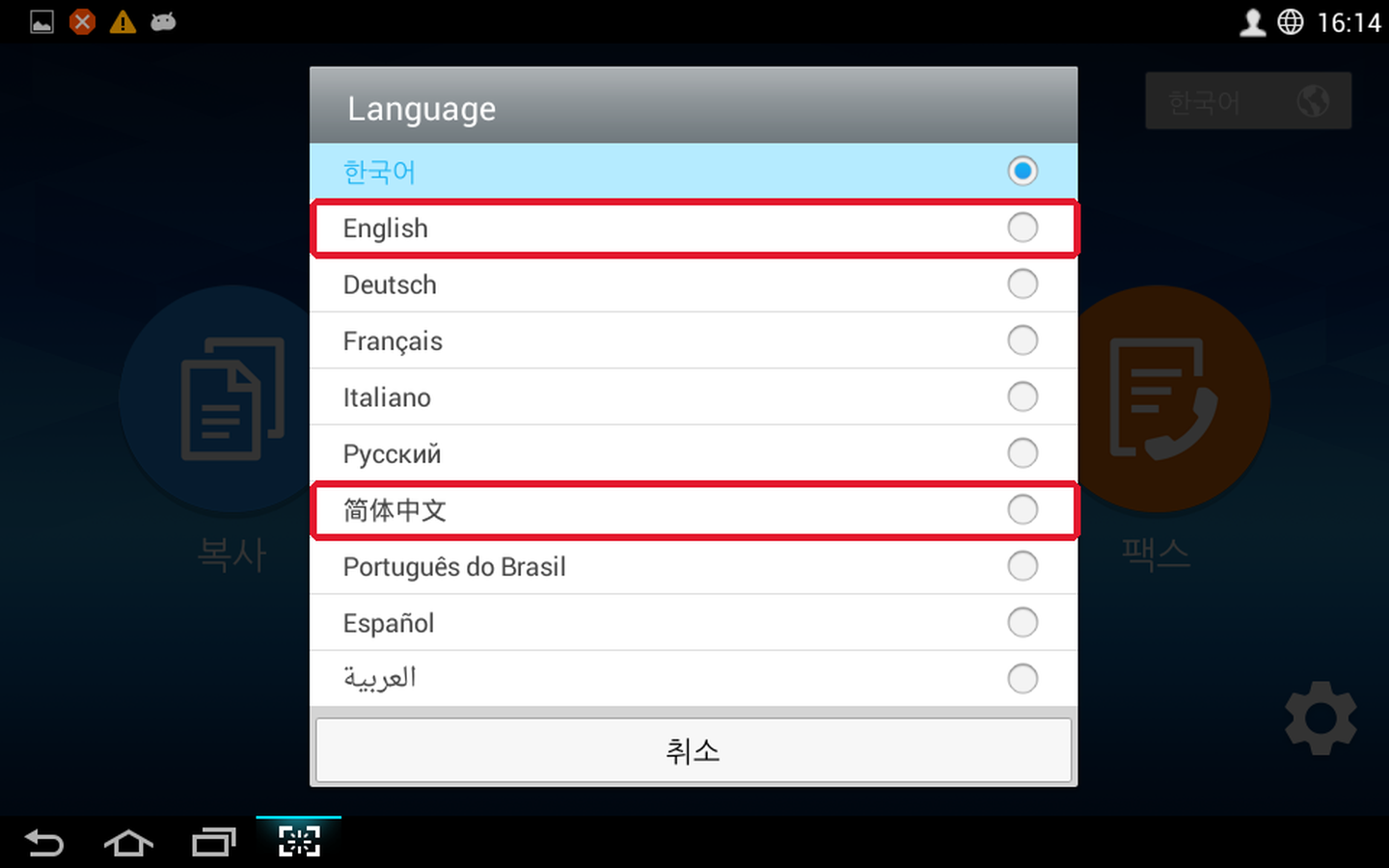
  2. Choose English from the list. The screen changes to English.Language list on the printer machine
  3. When you're done, please switch back to [한국어]. Sometimes it doesn't switch back by itself.
🚨 Put the original in first, then start! Same for copy · scan · fax
  1. 1
    Always put the original in the ADF (document feeder) first, then start.
  2. 2
    ✅ If it works, the original goes into the machine and then the [Billing Information] screen appears by itself.
  3. 3
    🛑 If you started but the original doesn't go into the machine, do NOT pay!
    Cancel the job on the screen and start again from the beginning.
  4. 4
    ❌ If you pay when the original did not go in, and you get a blank copy · blank scan · blank fax, there is no refund.
1
Putting the original in the document feeder (ADF)
Place the original on the printer machine
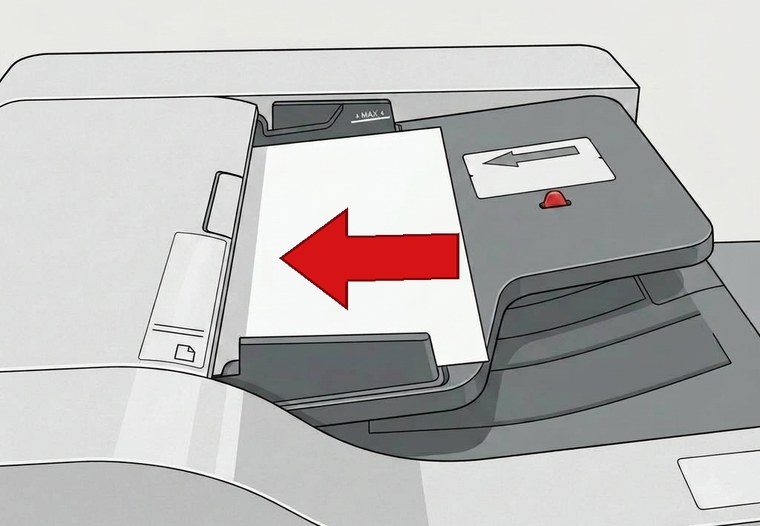
  1. Put it in with the side to scan facing up.
  2. The direction depends on the paper size.
    A4 → the long edge goes in first, to the left
    B4 · A3 → the short edge goes in first, to the left
  3. Push it all the way to the left. If you only put it in a little, the paper isn't pulled in and you get a blank page.
  4. Slide the top and bottom paper guides to fit the paper exactly. If they're loose, the paper goes in crooked and the copy comes out crooked.
  5. For many pages, stack them neatly and put them in together. (up to 100 sheets)
  6. If the paper goes into the machine and comes back out, it worked. If it doesn't go in, don't pay.
  7. Don't put ID cards · bankbooks · passports · books · crumpled paper here — put them on the glass. (Line them up with the white arrow at the top-left corner. Only ID cards go about 5mm away from the corner)
2
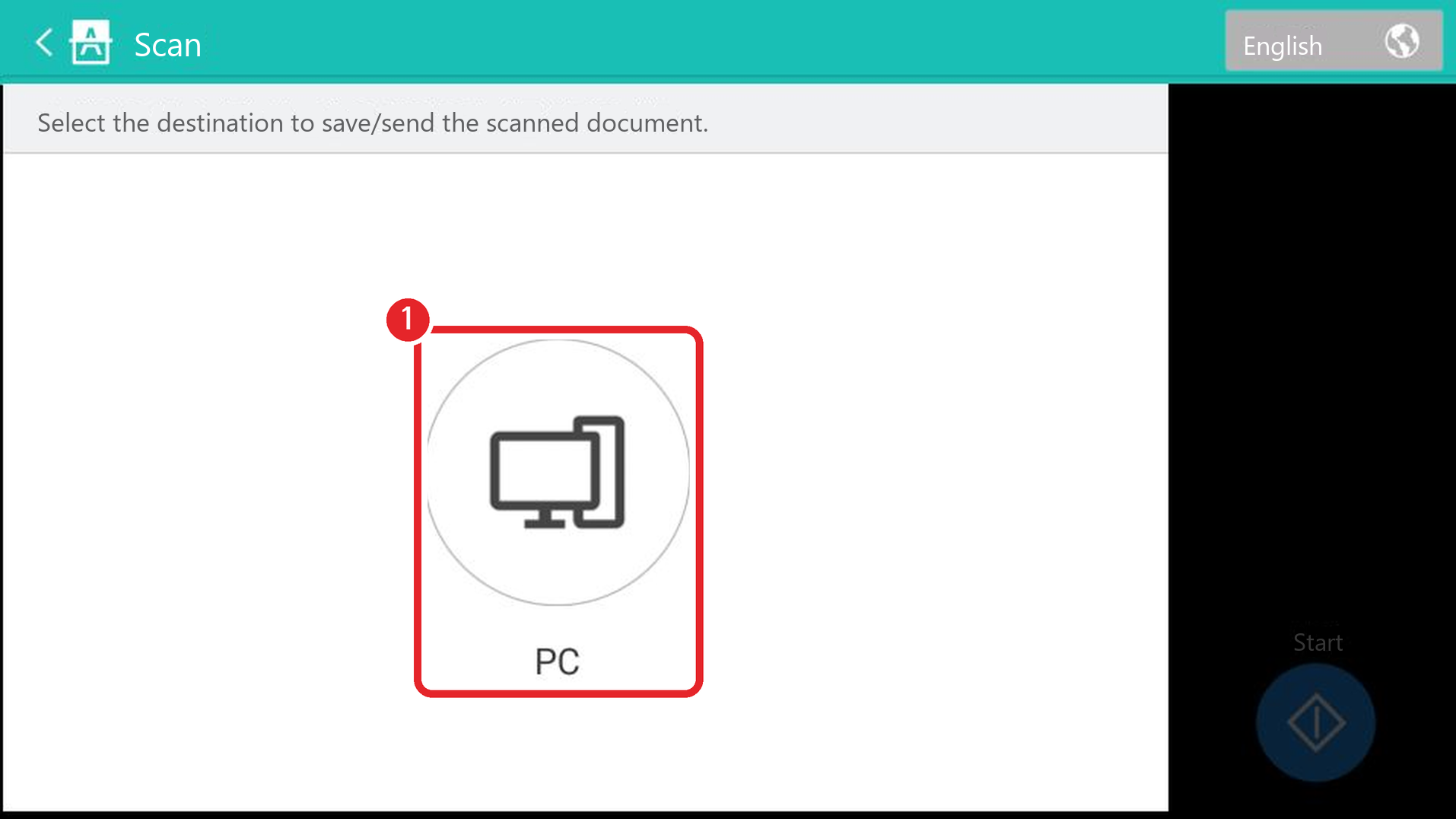
Scan menu screen for choosing PC as where to save the file, with a red box on the PC icon
Choose the Scan menu

Always place the original first, then press [Scan] on the screen.
A screen for choosing where to save the file appears. Press [PC].
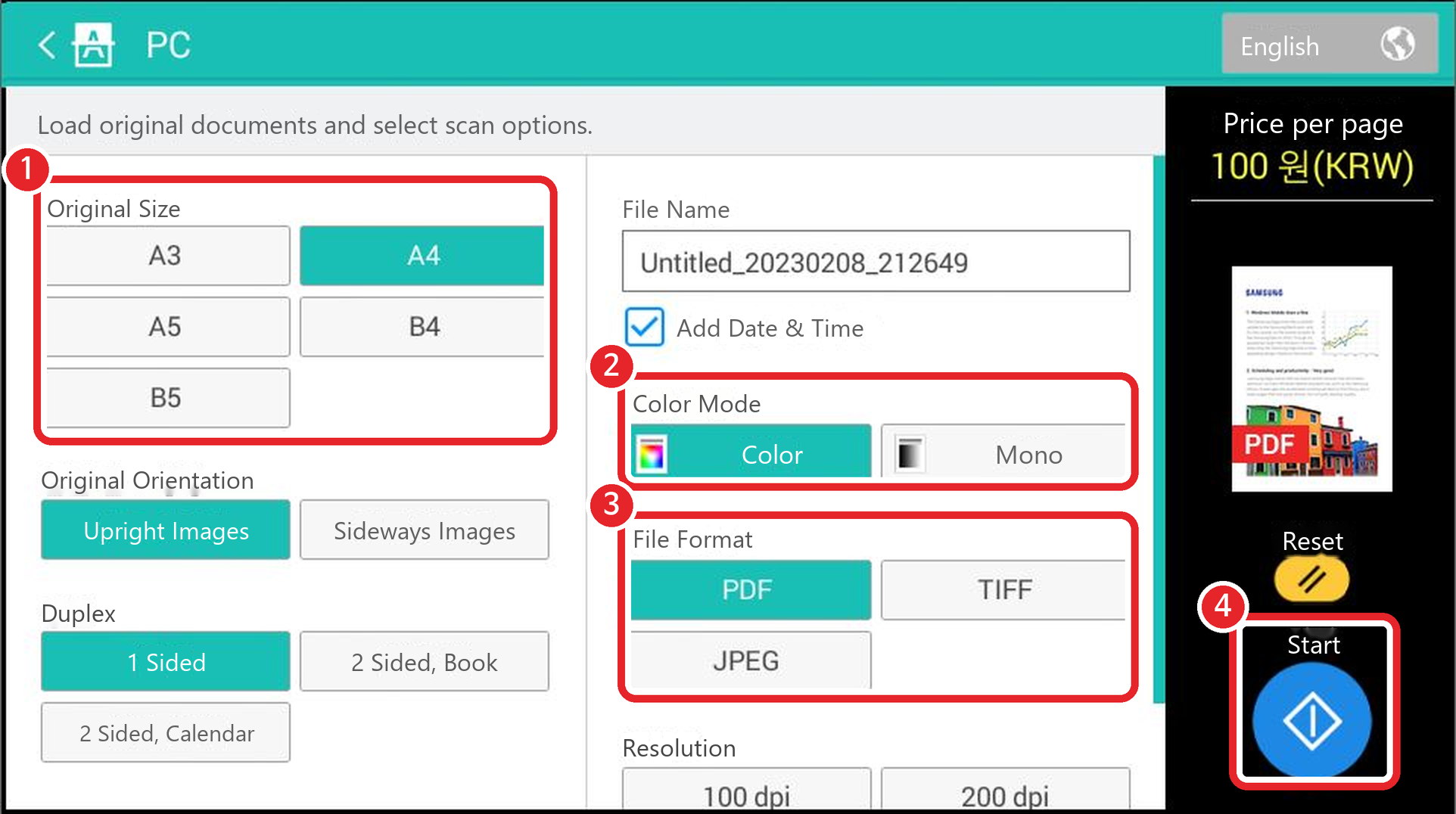
3
Scan options screen, with red boxes on 1 original size, 2 color (color · B&W), 3 file type (PDF · TIFF · JPEG), 4 Start button
Set up · Start

Press [PC] and the options screen appears. Set them in the order of the numbers in the picture.
Choose ① original size (A4 by default; change it if your original is B4 or A3), ② color (color / B&W), ③ file type (PDF · TIFF · JPEG), then press ④ [Start].

4
Billing Information 총 가격 100원 확인
Check the price [Billing Information]

Check the [Billing Information] screen carefully. If everything is correct, press [OK].
🧾 You must check the [Billing Information] screen!Check everything on the payment info screen. If you pay without checking and something is wrong, there is no refund or compensation.
Press [OK] to pay only after checking everything and it is all correct.
5
The '1번복합기스캔함' (Machine 1 scan folder) icon on the desktop: a teal background with a printer and the number 1
1번복합기스캔함
The '2번복합기스캔함' (Machine 2 scan folder) icon on the desktop: a teal background with a printer and the number 2
2번복합기스캔함
Pay, then find your file

After paying, go to a store PC and open the scan folder with the same number as the printer machine you used.
📁 The folders are on the desktop of every PC in the store.
e.g.) If you scanned on machine 1, open the '1번복합기스캔함' folder. If you scanned on machine 2, open the '2번복합기스캔함' folder.
Scanned files are deleted automatically after 30 minutes. Copy them to a USB or send them by email from the scan folder on the store PC.
!Some paper must not go in the document feeder (ADF)
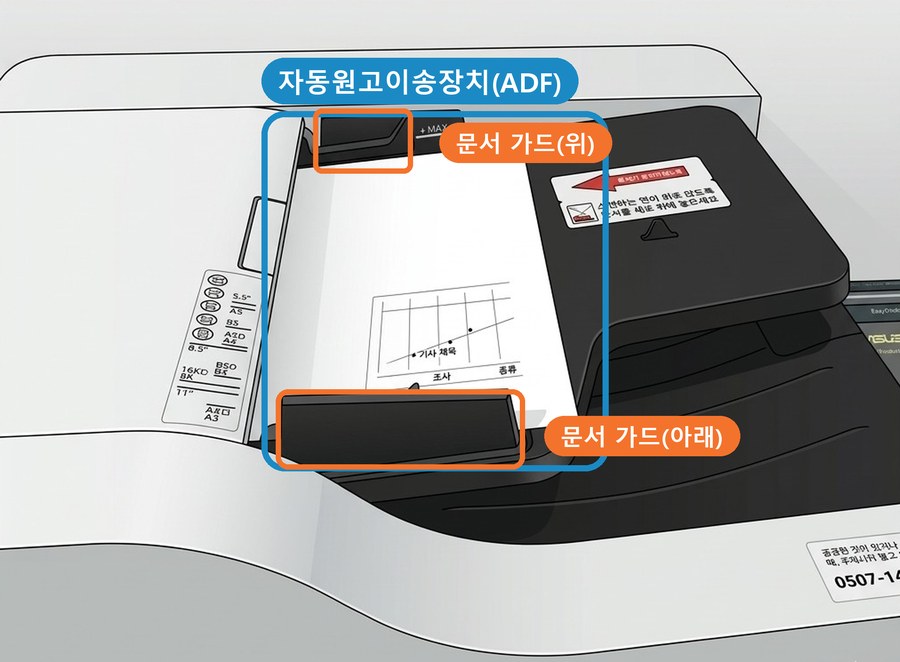
The document feeder (ADF) on top of the printer machine, with paper on it
📌 The blue-outlined part in the photo is the document feeder (ADF).
This is where you put many single sheets (up to 100) for copy · scan · fax.
📏 The orange parts above and below the original are the 'paper guides'. After putting in the original, slide the top and bottom guides to fit it exactly so it goes in straight.
OK to put in
  • Regular copy paper (A4 · B4 · A3) — same size together, up to 100 sheets at once.
  • Put same-size sheets together and line them up neatly.
  • Flat paper with no wrinkles
Do NOT put in
  • Very thin paper (like tracing paper)
  • Very thick paper (certificates, thick cards)
  • Paper with notes stuck on (memo · Post-it)
  • Stapled paper
  • Wrinkled or torn paper
  • A4 · B4 · A3 mixed together (put different sizes in separately)
  • Things that are not single sheets, like ID cards · bankbooks · passports · books
Don't put the 'Do NOT put in' items above in the document feeder. Open the cover and put them on the glass one at a time.
📌 On the glass, the side to copy · scan · fax must face down toward the glass.
If the machine breaks because you put in something we told you not to, you may have to pay for repairs.

Scan tips

On the right side of the scan screen, you set the file name and how sharp it is.

Scan settings screen. Inside the red boxes are [File Name], [Add Date & Time] and [Resolution]
📄 Don't uncheck [Add Date & Time]!

If you uncheck it, the file names become the same, and the file you scanned first is erased and replaced by the new one. Leave it checked so the date · time is added after the name, and it's safe.

🔎 If the text is small or it's a photo

In [Resolution] (Resolution), choose a bigger dpi number. It gets sharper.
But the file gets bigger, so it may be hard to send by email.

This page was translated from Korean. If anything looks wrong, please tell us on Naver TalkTalk. Screens on the machines are in Korean — the Korean button names are shown in [brackets].